Return rules: handling the exceptions
How rules work, the four things a rule can do, the coverage questions, and what happens when two rules disagree.
Your policy in Basics says what normally happens. Rules cover everything else: final sale items, faulty goods, customers who return too often, very large orders. They're checked on every return request.
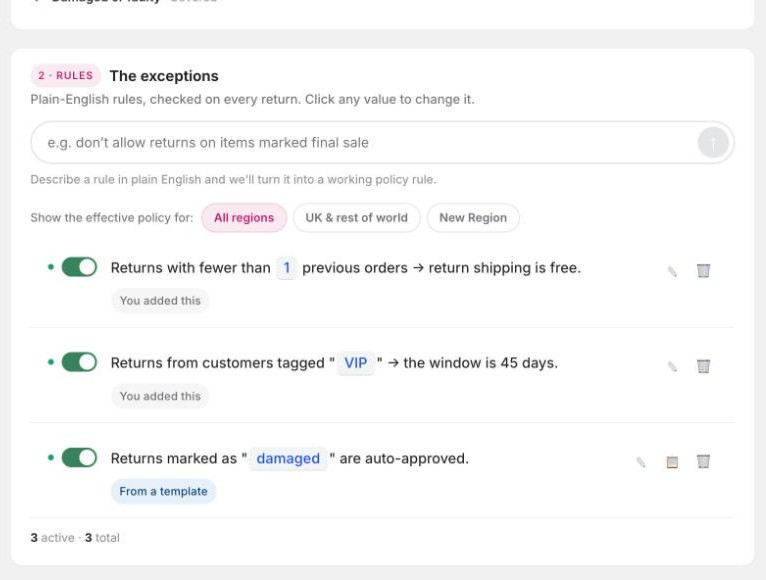
Each rule reads as a sentence, for example "If item tag is final-sale, deny". The highlighted parts of the sentence are clickable, so to change 30 days to 45 you click the number.
What a rule can do
A rule ends in one of four decisions.
| Decision | What happens |
|---|---|
| Auto-deny | The return is blocked. No review needed. |
| Send to review | The return waits on your Returns page for you to decide. |
| Auto-approve | The return goes straight through. |
| Flag | The return carries on as normal but is marked for your attention. |
A rule can also add a restriction instead of a decision. The restrictions are: store credit only, exchange only, refund without sending the item back, photo required, or a return fee (a percentage or a fixed amount).
What a rule can look at
Days since delivery, order value, item value, product tags, product type, the return reason, how many orders and returns the customer has had, whether they attached a photo, whether they have the original packaging, and the customer's country.
The coverage questions
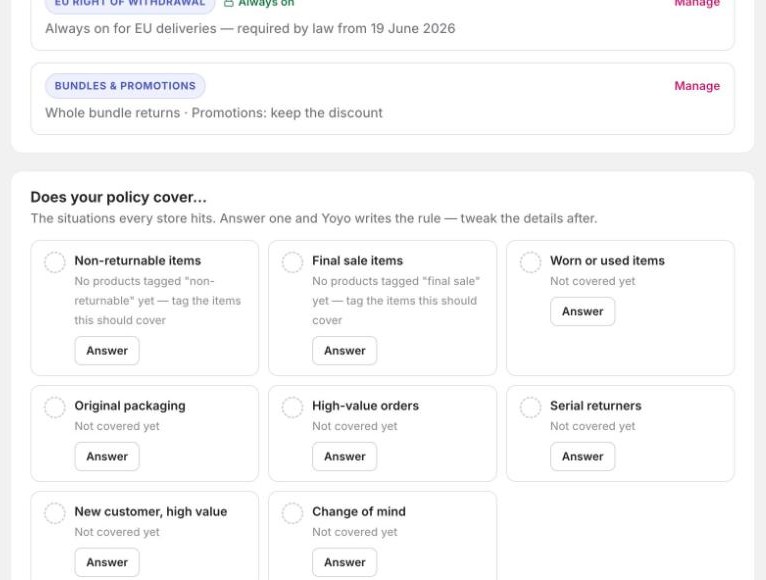
At the top of the page there's a Policy coverage bar and a list headed Does your policy cover…. It runs through the situations most stores hit sooner or later:
- Non-returnable items
- Final sale items
- Worn or used items
- Original packaging
- High-value orders
- Serial returners
- New customer, high value
- Damaged or faulty
- Change of mind
- International returns
Click Answer on any you haven't covered, then Add this rule. Yoyo writes the rule and you adjust the details. Where a rule depends on a product tag, the list tells you how many products in your store carry it, so you know whether there's tagging to do first.
Once everything is covered the list folds away behind the bar.
Adding a rule of your own
Type it into the box in the Rules section, in your own words. See write a rule in plain English.
When rules disagree
Yoyo checks every rule against every return, and more than one can match. When that happens:
- The safer decision wins. Deny beats review, review beats flag, flag beats approve.
- Restrictions stack. If one rule says photo required and another adds a fee, both apply.
- The higher fee wins if two rules set a fee.
- If two rules can't both be true (one says store credit only, another says exchange only) the return goes to review so you can decide.
Switching a rule off
Each rule has its own switch. A rule that's off stays on the page, greyed out, so you can turn it back on later. The count under the list shows how many are active.
Good to know
- To limit a rule to certain countries, set its scope on the rule. Otherwise it applies everywhere.
- Products you've marked as final sale or store-credit-only from the Intelligence page apply as well. They're listed at the bottom of Automation with a link back.
- If you used Yoyo before September 2026, your old rules were carried over. Nothing was lost.