Order editing
Let customers fix their own order in the first minutes after checkout. Covers what they can change, the edit window, and how to switch it on.
A good share of support email arrives within an hour of checkout: wrong address, wrong size, wrong colour. Order editing lets customers sort those out themselves before the order ships. Fewer tickets for you, and fewer returns later, because a wrong size caught now never leaves your warehouse.
It's off until you switch it on, under Order Editing in the Yoyo menu.
What customers can change
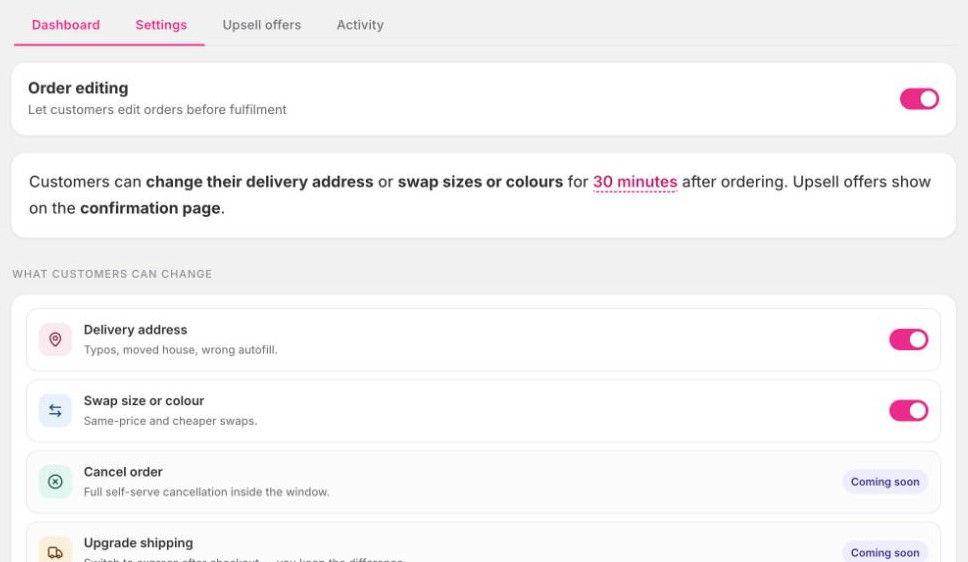
Each of these has its own switch under Order Editing → Settings. The page sums up your choices in one sentence at the top, so you can check it at a glance:
- Delivery address. Typos, moved house, wrong autofill.
- Swap size or colour. Swaps to the same price or cheaper. Cancel order and Upgrade shipping are both marked coming soon.
The edit window
You choose how long customers have: 15 minutes, 30 minutes, 1 hour, 24 hours, 3 days or 7 days.
Orders are held from fulfilment until the window closes, so nothing is packed while it can still change. A shorter window means faster dispatch. Thirty minutes to an hour catches most mistakes without slowing your warehouse down.
Under Advanced, you can choose how orders are held. Leave it on Automatic unless you have a reason to change it.
Switch it on
Enable order editing
Open Order Editing. The dashboard has a short Finish setting up list. Start with Enable order editing.
Choose your edit window
Pick the window and which changes you allow, then save.
Add the Order Editing block to your checkout pages
In Shopify admin go to Settings → Checkout → Customize. Switch to the Thank you page, click Add app block and choose Order Editing. Do the same on the Order status page. Save.
Add the button to your confirmation email (optional)
Place a test order
After checkout you should see the editing options on the thank-you page, with the time the window closes.
What the customer sees
On the thank-you page they're told "You can edit your order until" and the time. On their order status page there's a live countdown. They make the change, confirm, and the order updates in Shopify. When the window closes the options disappear and the order is released to ship.
If a change means they owe more, they pay the difference through your checkout before the edit is applied.
Good to know
- Undo unpaid add-ons is a safety net. If a customer adds an item and the payment fails, the item is taken off again when the window closes. You never ship something that wasn't paid for.
- Every edit is recorded under Order Editing → Activity, with the before and after.
- Editing only applies to orders that haven't been fulfilled. If you ship an order by hand inside the window, editing closes for that order.