Klaviyo
Connect Klaviyo, see the events Yoyo sends and the data that comes with them, and build a flow for each.
Yoyo sends Klaviyo an event each time something happens on a return. You build a flow in Klaviyo for each event, and Klaviyo sends the email. It takes about an hour to set up the main ones, and after that they look after themselves.
Connect
Create a private API key in Klaviyo
In Klaviyo go to Settings → API Keys and create a private key. It needs write access to Events. Copy it.
Paste it into Yoyo
In Yoyo go to Settings → Email Notifications, paste the key into Klaviyo Private API Key and click Connect. The card shows Connected, with a count of events sent.
Send a test event
Type your own email into Test email address and click Test next to Return Submitted. This creates the metric in Klaviyo so you can build a flow on it. Do the same for each event you plan to use.
The events
These are the metric names you'll see in Klaviyo.
| Metric | Sent when |
|---|---|
| Return Submitted | A customer sends a request |
| Return Approved | The return is approved |
| Return Denied | The return is rejected |
| Return Cancelled | The request is withdrawn |
| Return Label Created | A label or QR code is ready |
| Return Package Picked Up | The carrier first scans the parcel |
| Return Arrived at Warehouse | The parcel reaches you |
| Refund Issued | The refund or store credit goes out |
| Exchange Shipped | The replacement item ships |
| Return Shipment Overdue | A label was created but the parcel hasn't been sent |
| Return Stalled in Transit | No carrier update for several days |
| Return Delivery Failed | The carrier couldn't deliver the parcel to you |
| Exchange Reward Issued | A shopper earned a reward code for choosing an exchange |
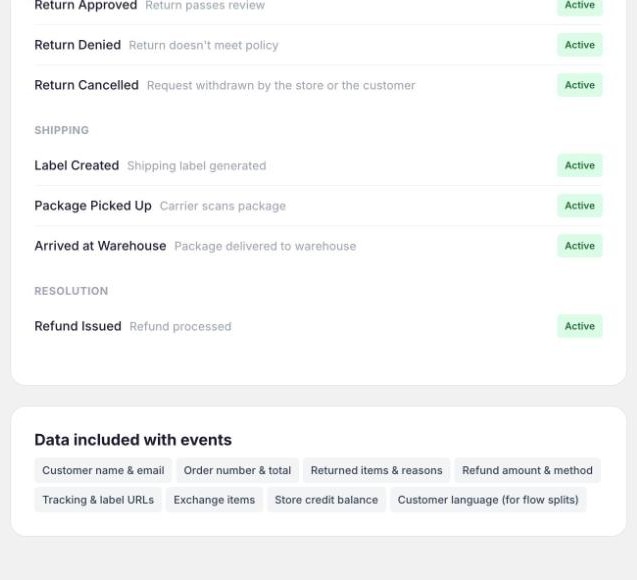
The data on each event
Use these in your email templates, for example {{ event.order_number }}.
- Customer: email, first name, last name, language
- Order:
order_number,order_date,order_total,currency - Return:
return_id,return_status,return_reason,return_items(a list with name, variant, price and quantity),deny_reason,cancel_reason - Shipping:
shipping_carrier,shipping_tracking_number,shipping_tracking_url,shipping_label_url - Refund:
refund_amount,refund_method,refund_expected_date - Exchange:
exchange_items,exchange_tracking_url - Reward:
reward_code,reward_description,reward_expires_at - Your store:
merchant_name,brand_logo_url
Build a flow
Create a flow triggered by the metric
In Klaviyo, create a flow from scratch and choose the metric as the trigger, for example Return Label Created.
Add one email
Keep it short. For the label email the customer needs a button linking to {{ event.shipping_label_url }} and one line on where to drop the parcel.
Mark it as transactional if you can
Return emails are service messages. Klaviyo lets you apply for transactional status so they reach customers who haven't opted in to marketing.
Set it live and test
Turn the flow from Draft to Live, then send yourself a test event from Yoyo.
If you only build three, make them Return Submitted, Return Label Created and Refund Issued. Those answer the three questions customers email about most: did you get it, how do I send it, where's my money.
Good to know
- Add a conditional split on the customer's language if you sell in more than one.
- The overdue, stalled and failed-delivery events are good for nudges. A reminder three days after a label is created gets more parcels posted.
- Yoyo only sends events. It never adds customers to your marketing lists.
- To disconnect, click Disconnect on the Klaviyo card. Events stop straight away and your flows stay in Klaviyo.